Google Search Console: The Free SEO Tool You’re Underusing
 Marcus Webb
11 min read
Marcus Webb
11 min read

I’ve been using Google Search Console for over 10 years. It’s the first tool I open every Monday morning, and it’s completely free. Yet most marketers I talk to barely scratch the surface of what it can do.
GSC gives you data straight from Google itself. No estimates, no third-party guessing. This is the actual data Google uses to understand your site. And you’re probably ignoring 80% of it.
In this guide, I’ll show you the features most people miss, the weekly routine that’s helped me grow organic traffic for dozens of sites, and the honest limitations you need to know about.
What is Google Search Console?
Google Search Console (formerly Google Webmaster Tools) is a free tool from Google that shows you how your website performs in Google Search. It tells you which queries bring visitors, which pages rank, and what technical issues might be holding you back.
Unlike paid SEO tools that estimate your rankings, GSC shows you the real data. When Google says you got 500 clicks from the query “best coffee maker” — that’s exactly what happened.
Key things GSC tells you:
- Which search queries bring traffic to your site
- Your actual ranking positions (averaged)
- Click-through rates for each query and page
- Which pages Google has indexed (and which it hasn’t)
- Technical issues affecting your SEO
- Core Web Vitals performance with real user data
- Who links to your site
Setting it up takes 5 minutes. You verify ownership through a DNS record, HTML file, or Google Analytics connection — Google’s official setup guide walks you through each method. Once verified, data starts flowing within 24-48 hours.
Why Most Marketers Underuse GSC
After working with marketing teams at startups and agencies for 12+ years, I’ve noticed the same pattern. People set up GSC, check it once, see some graphs, and never come back.
Here’s why this happens:
The interface isn’t intuitive. GSC wasn’t designed by UX experts. Features are buried in menus. Powerful filters exist but aren’t obvious. Most people never discover regex filtering or comparison mode.
Data feels overwhelming. Thousands of queries, hundreds of pages. Without a clear process, it’s easy to look at charts and not know what to do next.
Paid tools look shinier. Ahrefs and SEMrush have beautiful dashboards with competitive data, backlink analysis, and keyword suggestions. GSC looks boring in comparison. But those tools are guessing — GSC is telling you the truth.
No one teaches the good stuff. Most GSC tutorials cover the basics: “here’s the Performance report, here’s the Index report.” They don’t show you how to find pages that are one position away from a traffic explosion.
Let me fix that.
The 5 Most Underused GSC Features
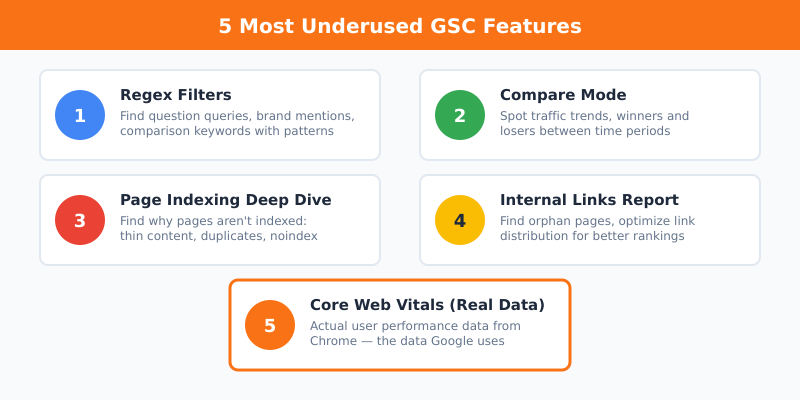
These are the features I use constantly that most marketers don’t even know exist.
1. Regex Filters in Performance Reports
The Performance report has a filter bar at the top. Most people use simple filters like “Queries containing: coffee.” But there’s a dropdown that says “Custom (regex)” — and it changes everything.
With regex filters, you can:
- Find all queries with question words:
^(how|what|why|when|where) - Spot brand mentions:
your brand|yourbrand|your-brand - Identify comparison queries:
vs|versus|compared to|or - Find long-tail opportunities: queries with 5+ words
I use this weekly to find question-based queries I’m ranking for. These often make great FAQ additions or new blog post ideas. If you’re ranking position 8-15 for “how to clean a coffee maker,” that’s a content opportunity screaming at you.
2. Compare Mode for Trend Analysis
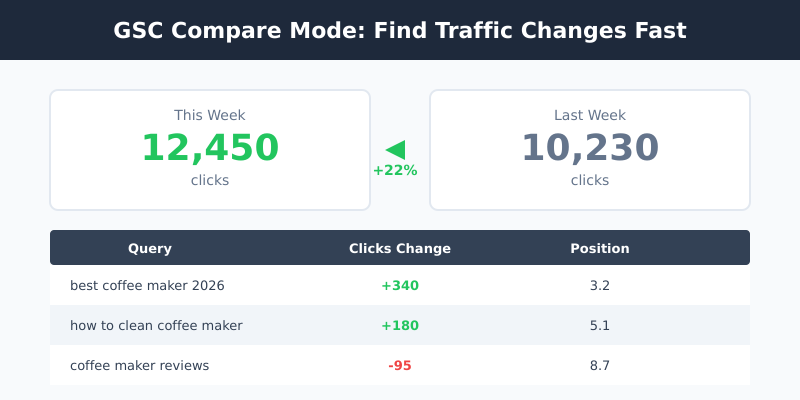
At the top of Performance reports, there’s a date range selector. Click it and you’ll see a “Compare” tab. This is gold.
You can compare:
- This month vs. last month
- This quarter vs. same quarter last year
- Last 7 days vs. previous 7 days
The magic is in the table below the graph. It shows you which queries and pages gained or lost the most clicks and impressions. Sort by difference and you’ll immediately see what’s working and what’s declining.
I check this every Monday. If a page dropped 30% in clicks week-over-week, I investigate immediately. Did a competitor outrank me? Did Google change the SERP layout? Is there a technical issue?
3. The Page Indexing Report
Go to Indexing → Pages. Most people look at the green “Indexed” number and move on. The real insights are in the “Not indexed” section.
Click on each reason to see affected URLs:
- Crawled – currently not indexed: Google found the page but chose not to index it. This often means thin content or duplicate issues.
- Discovered – currently not indexed: Google knows about it but hasn’t crawled it yet. Could be a crawl budget issue.
- Excluded by ‘noindex’ tag: You’re blocking it intentionally (or accidentally).
- Duplicate, Google chose different canonical: Google thinks another URL is the “main” version.
I once found 200 product pages stuck in “Crawled – currently not indexed” for a client. The pages had almost no unique content — just product specs copied from the manufacturer. We added unique descriptions and reviews, and 80% got indexed within a month.
4. Links Report for Internal Linking Strategy
Go to Links → Internal links. This shows which pages on your site have the most internal links pointing to them.
Why this matters: Internal links pass authority. If your most important pages have few internal links, they’ll struggle to rank. Meanwhile, your “About Us” page might have links from every page in the footer.
What I look for:
- Important pages with fewer than 10 internal links — they need more
- Blog posts that never got linked from other content
- Orphan pages with zero internal links (these rarely rank well)
The External links section shows your backlink profile. It’s not as detailed as Ahrefs, but it’s accurate. I use it to verify that backlinks I’m building actually got detected by Google.
5. Core Web Vitals with Real User Data
Go to Experience → Core Web Vitals. This isn’t lab data from a testing tool — it’s real performance data from actual Chrome users visiting your site. Google considers Core Web Vitals a ranking factor, so this data matters.
You’ll see:
- LCP (Largest Contentful Paint): How fast your main content loads
- INP (Interaction to Next Paint): How responsive your site is to clicks
- CLS (Cumulative Layout Shift): How much stuff jumps around while loading
The report groups URLs by similar performance. Click “Open Report” to see which specific pages have issues. This data is based on the Chrome User Experience Report (CrUX) — the same data Google uses for ranking decisions.
Pro tip: If you have “Poor” URLs, fix those first. Moving from “Poor” to “Good” can noticeably impact rankings. Moving from “Good” to “Great” usually doesn’t.
My Weekly GSC Routine (15 Minutes Every Monday)
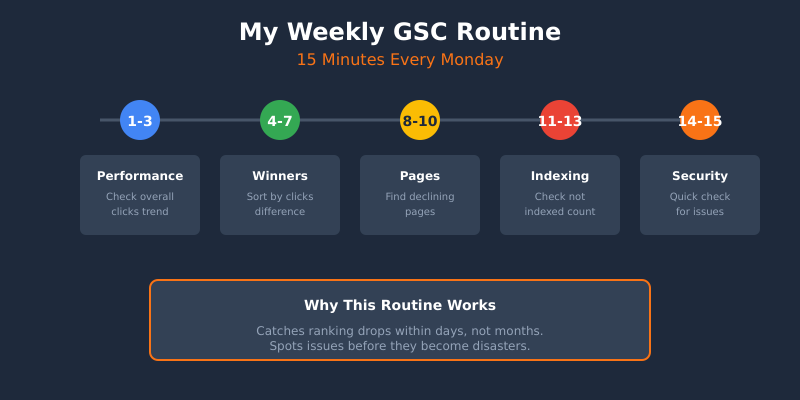
Here’s exactly what I check every week. This takes about 15 minutes and catches most problems before they become disasters.
Minute 1-3: Performance overview
- Open Performance report, set to last 7 days vs. previous 7 days
- Check if total clicks went up or down significantly
- Look at the trend line — any sudden drops?
Minute 4-7: Winners and losers
- Sort queries by “Clicks Difference” descending
- Note queries that gained significantly — what’s working?
- Sort ascending — what’s declining? Investigate any major drops
Minute 8-10: Page performance
- Switch to Pages tab
- Sort by clicks difference
- Identify pages losing traffic — check for technical issues
Minute 11-13: Index status
- Go to Indexing → Pages
- Check if “Not indexed” count is growing
- Click into any categories with sudden increases
Minute 14-15: Quick security check
- Glance at Security & Manual Actions
- Should say “No issues detected” — if not, drop everything
This routine has saved me countless times. I’ve caught ranking drops within days instead of months, identified hacked pages before Google penalized the site, and spotted content cannibalization issues early.
Quick Wins: Find Pages Ready to Rank Higher
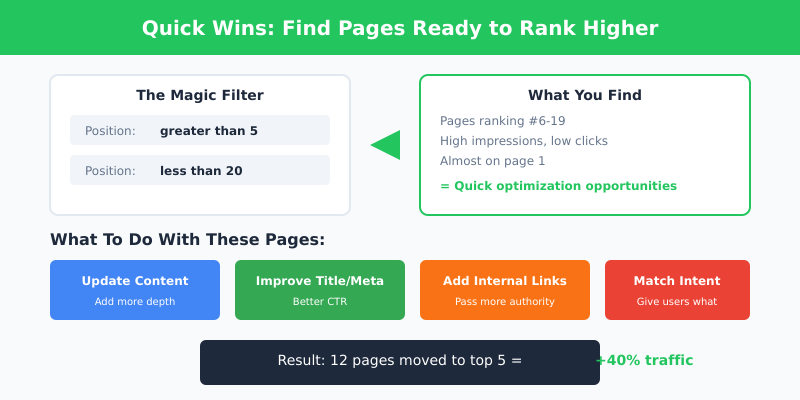
Here’s my favorite GSC trick. It finds pages that are almost ranking well and just need a small push.
Open the Performance report and set the date range to the last 3 months, so the sample is big enough to trust.
Click the filter button and add a position filter: greater than 5, less than 20. That band is where a small ranking gain turns into real clicks.
Sort by impressions, descending. The queries at the top are the ones worth an afternoon.
You now have a list of queries where you’re ranking on page 1-2 but not in the top 5. These pages get seen but don’t get clicked because they’re not high enough.
What to do with this list:
- Update the content with more depth
- Improve the title tag and meta description for better CTR
- Add internal links from other relevant pages
- Check if the search intent matches what your page delivers
I ran this for a B2B client last year. Found 30+ queries where they ranked positions 8-15 with high impressions. After optimizing those pages, 12 moved into the top 5 within two months. Organic traffic jumped 40%.
This works because you’re not starting from zero. Google already thinks your page is relevant — you just need to prove it deserves a higher spot.
GSC Limitations You Need to Know
I believe in being honest about tools. GSC is excellent, but it has real limitations:
Data delay of 2-3 days. The Performance report doesn’t show today’s data. You’re always looking at what happened 48-72 hours ago. For real-time monitoring, you need Google Analytics.
16-month data retention. GSC only keeps 16 months of historical data. If you need to compare year-over-year trends beyond that, export your data regularly or use a tool like Looker Studio to archive it.
1,000 row export limit. When you export data, you only get 1,000 rows. For large sites with thousands of queries, this is frustrating. The Search Console API gives you more, but requires technical setup.
Position data is averaged. If GSC says your average position is 8.3, that’s an average across all searches. Your actual position varies by location, device, personalization, and time. Don’t obsess over decimal changes.
Limited competitive data. GSC only shows YOUR data. It won’t tell you what competitors rank for, how many backlinks they have, or what content gaps exist. For competitive research, you need paid tools.
No keyword difficulty or search volume. GSC shows impressions, which roughly correlates with search volume, but it doesn’t tell you how hard a keyword is to rank for.
These limitations matter. But for your own site’s data, nothing beats GSC accuracy.
GSC vs Paid SEO Tools: Do You Need Ahrefs or SEMrush?
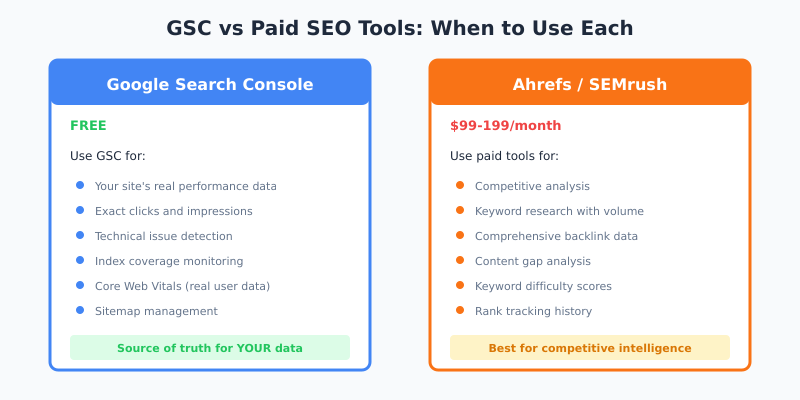
I use both GSC and paid SEO tools. Here’s when each makes sense:
Use GSC when you need:
- Accurate data about YOUR site’s performance
- Technical issue identification
- Index coverage monitoring
- Real Core Web Vitals data
- Exact click and impression counts
Use paid tools (Ahrefs, SEMrush) when you need:
- Competitive analysis
- Keyword research with search volume and difficulty
- Comprehensive backlink analysis
- Content gap analysis
- Rank tracking with more history
For solopreneurs and small sites, GSC is often enough. You can do real SEO work without paying $99-199/month for Ahrefs or SEMrush.
For agencies and larger sites, paid tools become necessary for competitive intelligence. But GSC should still be your source of truth for your own data — paid tools estimate, GSC confirms.
My recommendation: Master GSC first. It’s free and teaches you what actually matters in SEO. Add paid tools later when you hit specific needs GSC can’t solve.
Who Should Use Google Search Console?
You should definitely use GSC if:
- You have a website and care about organic search traffic
- You’re on a budget and can’t afford expensive SEO tools
- You want accurate data, not third-party estimates
- You need to monitor technical SEO health
- You’re learning SEO and want to understand the basics
GSC alone might not be enough if:
- You need extensive competitive analysis
- You’re an agency managing many client sites
- You require keyword research with search volume data
- You need backlink prospecting and outreach features
Everyone running a website should have GSC set up and check it regularly. It costs nothing, and the data comes from the one source no third-party tool can reach.
FAQ
Is Google Search Console really free?
Yes, completely free. No premium tier, no hidden fees. Google provides it because they want webmasters to create better websites that improve search quality. You just need a Google account and a website to verify.
How long does it take for GSC to show data?
After verification, initial data appears within 24-48 hours. However, comprehensive data with meaningful patterns takes 2-4 weeks to accumulate. Performance data has a 2-3 day delay, so you won’t see today’s clicks until later this week.
Can GSC replace Ahrefs or SEMrush?
For your own site’s data, GSC is actually more accurate than paid tools. But it can’t replace competitive research, keyword difficulty scores, or comprehensive backlink analysis. Most SEO professionals use both — GSC for their own data, paid tools for competitive intelligence.
Why does GSC show different numbers than Google Analytics?
GSC counts impressions and clicks in Google Search results. Google Analytics counts sessions on your website. A user might see your result, click it, visit multiple pages, then leave — that’s 1 click in GSC but multiple pageviews in GA. Different tools measure different things.
How often should I check Google Search Console?
I recommend a 15-minute weekly check every Monday to catch trends and issues. Daily checking is overkill for most sites — the 2-3 day data delay means you won’t see immediate changes anyway. For large sites or after major updates, checking 2-3 times per week makes sense.
Final Verdict: Start Using GSC Properly Today
Google Search Console is the most underrated free tool in digital marketing. It gives you data straight from Google — no estimates, no guessing. And most people barely touch its real power.
Here’s what I want you to do this week:
- Set up GSC if you haven’t already (takes 5 minutes)
- Run the “quick wins” filter I described — find your position 5-20 queries
- Check your Page Indexing report — any pages stuck in “not indexed”?
- Set a weekly reminder to check GSC every Monday
The features I’ve shared have helped me and my clients find thousands of dollars in organic traffic opportunities. All from a free tool that was sitting there the whole time.
I buy and test every tool I review. For Google Search Console, there’s nothing to buy — but after 10+ years of daily use, I can tell you it’s earned its place as the first tab I open every morning.
Stop underusing it. Start this Monday.