
I’ve built remote teams from scratch three times. Each time, the hardest part wasn’t hiring — it was getting the tools to actually work together.
Most “best remote tools” lists throw 50 options at you without explaining how they connect. You end up with Slack notifications about Asana tasks that link to Google Docs stored in Dropbox, and nobody knows where anything lives.
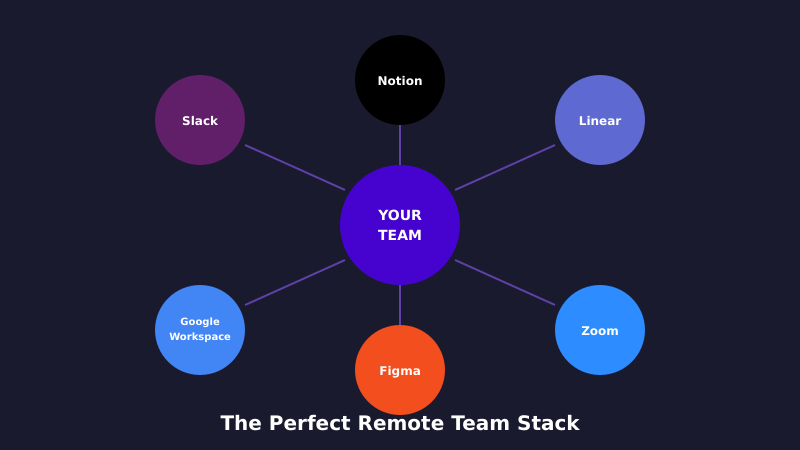
After 12 years of testing tools and managing distributed marketing teams, I’ve landed on a stack that actually works. These tools integrate natively, reduce context-switching, and won’t break the bank. Here’s the exact setup I recommend for remote teams in 2026.
What Makes a Good Remote Stack?
Before diving into specific tools, here’s what separates a functional stack from tool chaos:
Native integrations matter. If you need Zapier to connect two tools, that’s a red flag. The best tools connect directly — Slack messages from Notion updates, Figma embeds in Linear tickets, Loom videos in Slack threads.
Fewer tools, better connected. A team using 5 well-integrated tools will outperform a team juggling 15 disconnected ones. Every new tool adds cognitive load and another place to check.
One source of truth per category. You need ONE place for chat, ONE for documents, ONE for tasks. The moment you have “some stuff in Notion, some in Google Docs,” you’ve lost.
Free tiers that actually work. Good tools let small teams operate for free until they genuinely need paid features. Aggressive paywalls on basic functionality are a warning sign.
The Core Stack: 8 Tools That Work Together
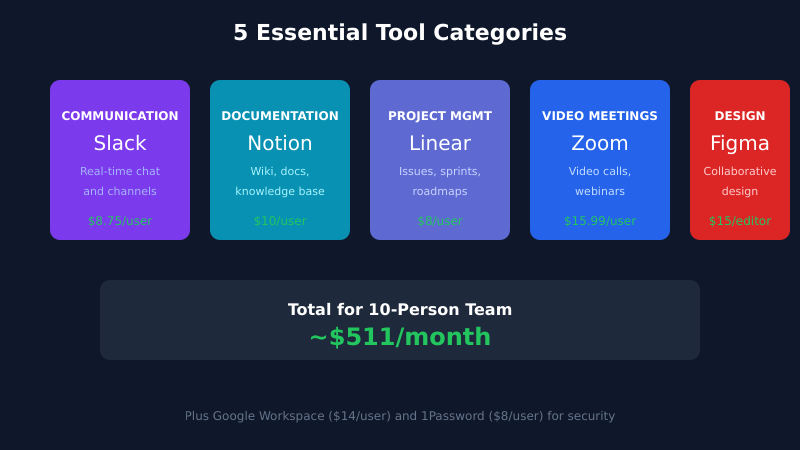
Here’s the stack I recommend. Each tool is best-in-class for its category, and they all integrate natively with each other.
1. Slack — Communication Hub
Slack is the center of your remote stack. Everything flows through it — project updates, quick questions, video calls, automated notifications.
Why Slack:
- Channel-based messaging keeps conversations organized
- 2,600+ native integrations — more than any competitor
- Huddles for quick voice calls without scheduling
- Workflow Builder for simple automations
- Excellent search across all messages and files
Key integrations: Google Drive, Notion, Figma, Linear, Loom, Zoom, GitHub — all post directly to Slack channels.
Pricing: Free for small teams (90-day message history). Pro at $8.75/user/month unlocks unlimited history and integrations.
Alternative: Microsoft Teams if you’re already deep in Microsoft 365.
2. Notion — Documentation and Wiki
Notion is your team’s second brain — meeting notes, project documentation, company wiki, SOPs, and knowledge base all in one place.
Why Notion:
- Flexible blocks let you build any type of document
- Database views for tracking projects, content, hiring
- Native Slack integration posts updates to channels
- AI features for writing assistance and summaries
- Beautiful, shareable pages for external stakeholders
Key integrations: Slack (bi-directional), Figma embeds, GitHub links, Google Drive files, Loom videos embed directly.
Pricing: Free for individuals. Plus at $10/user/month for teams. Business at $18/user/month for advanced permissions.
Alternative: Confluence if you need enterprise compliance, Slite for simpler needs.
3. Linear — Project and Task Management
Linear handles all task management — sprints, issues, roadmaps, and project tracking. It’s faster than any alternative and engineers actually enjoy using it.
Why Linear:
- Blazing fast — every interaction under 50ms
- Keyboard-first navigation
- Cycles (sprints) with automatic rollover
- Beautiful roadmap and timeline views
- Native GitHub/GitLab integration
Key integrations: Slack (real-time notifications), GitHub (bi-directional sync), Figma (attach designs to issues), Sentry (auto-create bugs).
Pricing: Free for unlimited users (250 issues). Basic at $8/user/month for unlimited issues.
Alternative: Asana for non-engineering teams, ClickUp for all-in-one needs.
4. Google Workspace — Productivity Suite
Google Workspace provides email, calendar, video calls, and real-time document collaboration. It’s the foundation everything else connects to.
Why Google Workspace:
- Gmail, Calendar, Drive, Docs, Sheets, Meet in one suite
- Real-time collaboration on documents
- 15GB free storage per user, 2TB on paid plans
- Works everywhere — web, mobile, desktop
- Universal SSO for other tools
Key integrations: Slack (file sharing, calendar sync), Notion (embed Google Docs), virtually every business tool connects to Google.
Pricing: Business Starter at $7.20/user/month. Business Standard at $14.40/user/month for more storage and features.
Alternative: Microsoft 365 if your team prefers Outlook and Office apps.
5. Figma — Design Collaboration
Figma is where design happens — UI mockups, prototypes, presentations, and visual collaboration. Non-designers can comment and review without learning complex software.
Why Figma:
- Real-time multiplayer editing
- Browser-based — no software to install
- FigJam for whiteboarding and brainstorming
- Dev mode for engineer handoffs
- Extensive plugin ecosystem
Key integrations: Slack (share designs, get notifications), Linear (attach to issues), Notion (embed live previews), Jira, Asana.
Pricing: Free for 3 projects. Professional at $15/editor/month. Viewers are always free.
Alternative: Sketch for Mac-only teams, Adobe XD if you’re in the Adobe ecosystem.
6. Loom — Async Video Communication
Loom replaces meetings that could be emails — and emails that need video context. Record your screen, explain something complex, share instantly.
Why Loom:
- Record screen + camera in one click
- Instant shareable links (no upload wait)
- Comments and reactions on specific timestamps
- Transcripts and AI summaries
- Works across time zones without scheduling
Key integrations: Slack (unfurl previews), Notion (embed videos), Gmail (insert recordings), Linear, Figma.
Pricing: Free for 25 videos up to 5 minutes. Business at $15/creator/month for unlimited recording.
Alternative: Vidyard for sales teams, CloudApp for screenshot/GIF focus.
7. Zoom — Video Meetings
Zoom handles synchronous video — team meetings, client calls, interviews, and all-hands. It’s still the most reliable option for video quality.
Why Zoom:
- Rock-solid video quality and reliability
- Breakout rooms for workshops
- Cloud recording with transcripts
- Waiting rooms and security features
- Works on any device, any connection
Key integrations: Slack (start calls from channels), Google Calendar (one-click join), Notion (embed recordings), HubSpot, Salesforce.
Pricing: Free for 40-minute meetings. Pro at $15.99/host/month for unlimited duration.
Alternative: Google Meet if you want fewer tools, Microsoft Teams for Microsoft shops.
8. 1Password — Security and Access
1Password manages passwords, API keys, and secure documents. Essential for remote teams where you can’t physically share credentials.
Why 1Password:
- Shared vaults for team credentials
- Secure document storage
- Travel mode hides sensitive data at borders
- Watchtower alerts for breached passwords
- SSO integration for enterprise
Key integrations: Slack (share items securely), Okta, Azure AD, all major browsers.
Pricing: Teams at $19.95/month for up to 10 users. Business at $7.99/user/month for larger teams.
Alternative: Bitwarden for budget-conscious teams (open source), LastPass Teams.
How These Tools Connect
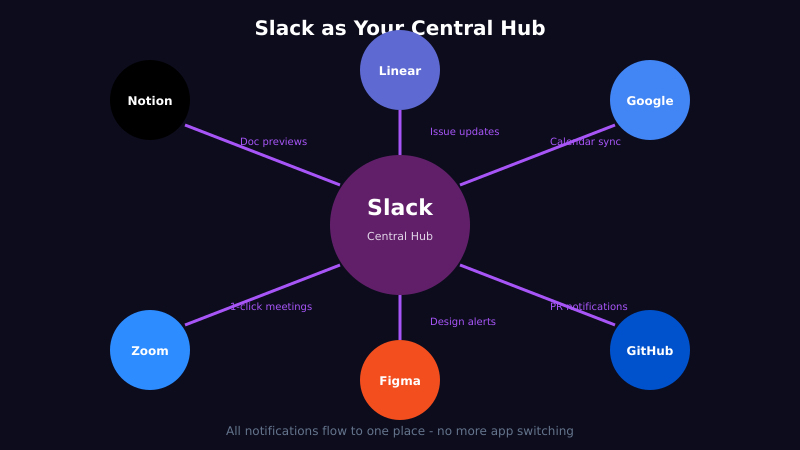
The magic isn’t in individual tools — it’s in how they work together. Here’s the integration map:
Slack is the hub. Every other tool posts to Slack:
- Linear posts when issues are created, completed, or commented on
- Notion sends notifications when pages are updated
- Figma alerts when designs are ready for review
- GitHub/GitLab notifies on pull requests and deployments
- Google Calendar reminds about upcoming meetings
- Loom unfurls video previews directly in channels
Notion is the knowledge base. Everything documents back to Notion:
- Meeting notes with embedded Loom recordings
- Project specs with linked Linear issues
- Design documentation with Figma embeds
- SOPs with Google Doc links
Linear is the task system. All work items live in Linear:
- Linked to Notion documentation
- Attached Figma designs
- Connected GitHub branches and PRs
- Discussed in Slack threads
This creates a clear flow: discuss in Slack → document in Notion → track in Linear → design in Figma → review via Loom → meet on Zoom.
What This Stack Costs
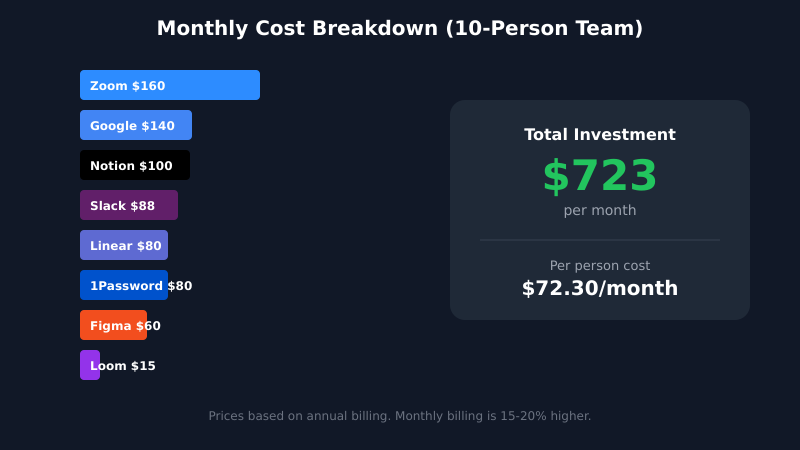
Here’s the monthly cost for a 10-person remote team:
| Tool | Plan | Cost/Month |
|---|---|---|
| Slack | Pro | $87.50 |
| Notion | Plus | $100.00 |
| Linear | Basic | $80.00 |
| Google Workspace | Business Starter | $72.00 |
| Figma | Professional (3 editors) | $45.00 |
| Loom | Business (5 creators) | $75.00 |
| Zoom | Pro (2 hosts) | $31.98 |
| 1Password | Teams | $19.95 |
| Total | $511.43 |
That’s ~$51/person/month for a complete, integrated remote stack. Compare that to enterprise suites that charge $100+/user for less functionality.
Budget version: Use free tiers of Slack, Notion, Linear, Figma, and Loom. Stick with Google Meet instead of Zoom. Total cost: ~$90/month (just Google Workspace and 1Password).
Common Stack Mistakes to Avoid
After helping dozens of teams set up their remote tools, here are the mistakes I see repeatedly:
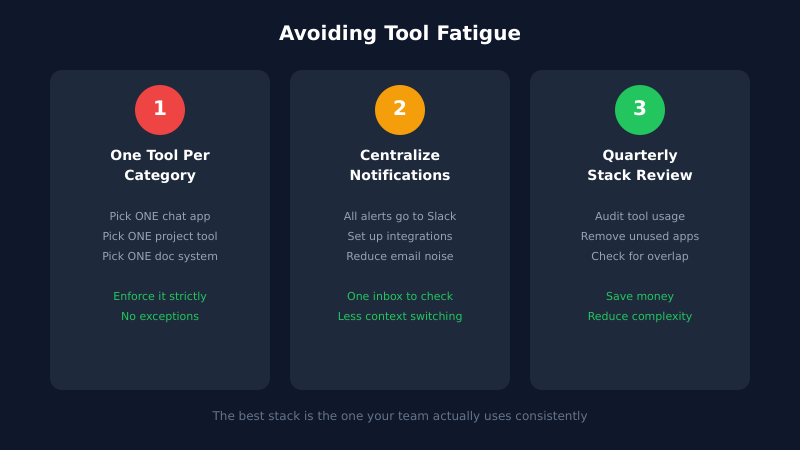
1. Too many communication channels. If you have Slack AND Microsoft Teams AND Discord, nobody knows where to post. Pick one. Stick with it.
2. Documentation scattered everywhere. Some notes in Notion, some in Google Docs, some in Confluence, meeting recordings in three different places. Consolidate ruthlessly.
3. Project management tool that nobody uses. Usually happens when leadership picks a tool without consulting the team. If people hate using it, they won’t update it, and it becomes useless.
4. No naming conventions. Channels named randomly, documents titled “Final_v3_REAL,” Notion pages with no structure. Create conventions early and enforce them.
5. Skipping async video. Teams try to schedule everything as meetings across time zones. Loom recordings for updates, walkthroughs, and feedback save hours weekly.
6. No password management. Sharing passwords in Slack DMs, storing API keys in plain text, reusing passwords across services. This is how you get hacked.
Setting Up Your Stack (Step by Step)
If you’re starting from scratch, here’s the order I recommend:
Week 1: Foundation
- Set up Google Workspace with your domain
- Create Slack workspace, invite team
- Set up 1Password, migrate all credentials
Week 2: Communication
- Create Slack channel structure (see below)
- Connect Google Calendar to Slack
- Set up Zoom and connect to Slack
- Install Loom, create first team video
Week 3: Work Management
- Set up Notion workspace with team wiki template
- Create Linear workspace, define workflows
- Connect Linear and Notion to Slack
Week 4: Design and Polish
- Set up Figma organization
- Connect Figma to Slack and Linear
- Document all processes in Notion
- Train team on full stack
Recommended Slack Channel Structure
A clean Slack structure prevents chaos. Here’s what works:
#general— Company-wide announcements only#random— Non-work chat, memes, watercooler#team-[name]— Each team/department gets a channel#project-[name]— Active projects get dedicated channels#standup— Daily async updates#wins— Celebrate achievements#help— Ask questions, get support#tools-[name]— Automated notifications from tools
Archive project channels when complete. Keep channel count manageable.
FAQ
Can I use Microsoft Teams instead of Slack?
Yes, if you’re already in the Microsoft 365 ecosystem. Teams integrates better with Outlook, Word, and SharePoint. But Slack has more third-party integrations and a better user experience. Most startups prefer Slack; enterprises often standardize on Teams.
Do I really need both Notion and Linear?
Yes. They serve different purposes. Notion is for documentation, wikis, and knowledge management. Linear is for task tracking, sprints, and project management. Trying to do both in one tool creates a mess. Notion’s task features are limited; Linear’s docs are minimal.
What if we can’t afford paid plans?
Start with free tiers — they’re genuinely usable. Slack Free (90-day history), Notion Free (unlimited blocks), Linear Free (250 issues), Figma Free (3 projects), Loom Free (25 videos). Upgrade only when you hit real limits.
How do we handle different time zones?
Lean heavily on async tools: Loom for video updates, Notion for documentation, Linear for task context. Minimize required synchronous meetings. When you do meet, rotate times so the same people aren’t always inconvenienced.
Is this stack secure enough for enterprise?
For most companies, yes. All listed tools offer SOC 2 compliance, SSO options, and enterprise security features on higher tiers. For regulated industries (healthcare, finance), you may need additional compliance features — check each tool’s enterprise plan.
Final Thoughts
The best remote stack isn’t about having the most tools — it’s about having the right tools that actually connect.
This 8-tool stack (Slack, Notion, Linear, Google Workspace, Figma, Loom, Zoom, 1Password) covers everything a remote team needs without overlap or gaps. Each tool is best-in-class for its category, and they all integrate natively.
Start with the free tiers. Add paid features as you grow. Focus on adoption — the best tools are useless if your team doesn’t use them consistently.
I’ve tested hundreds of tools over 12 years. This stack is what I actually use and recommend. It works.

|
Written by
Marcus Webb
Marketing strategist with 12+ years of experience. I test tools so you do not waste money on software that does not deliver. More about me → |